

Use your calendar, booking page and tasks
Sync Google Calendar, see appointments, deal dates and occasions in one calendar, share a booking link clients can book from, and keep your tasks on time.
For agents and team leadsChecked About Calendar & booking
Video walkthrough
The video for this guide isn’t recorded yet. Every step it will show is written out below.
- 1. Syncing Google Calendar
- 2. What the calendar shows
- 3. Your booking page
- 4. Tasks, due dates and snoozing
- 5. Your tasks in another calendar
What it’s for
The Calendar shows your appointments next to the dates that matter in your business: deal closings, listing days, open houses and your contacts' occasions. Synced with Google Calendar, it stays in step with the calendar on your phone.
A booking page lets clients pick a time that's really open, and Tasks keeps the follow-ups that fill the rest of your day.
Before you start
- Google Calendar connected: tick Calendar when you connect your Google account. Connect Gmail walks through the same dialog.
- Your timezone, under Regional Preferences in Settings → Profile, so due dates and open times fall on your clock.
Steps
Step 1: Read the calendar
Open Calendar and switch between Month, Week and Day. The filters choose what shows: Appointments, Tasks, External events from your Google Calendar, Deal dates & occasions and Custom dates.
The Google Calendar card shows when it last synced. New appointments you make in Uplevel are saved to Google, and events you add in Google show up here.
Step 2: Add an appointment and log how it went
Choose New appointment, give it a time and link the contact and, for a showing, the property. Afterward, open it and choose Log outcome: Completed, No show or Canceled. The outcome goes on the contact's timeline.
When a visitor asks for a showing through your website, the request appears on the calendar for you to confirm, propose another time or decline. Each choice emails the visitor.
Step 3: Set up your booking page
Go to Settings → Scheduling:
- Under Your booking link, turn the page on, choose the Link name and write a Page headline and an optional intro. Choose Save link.
- Under Weekly hours & booking rules, set your hours for each day, buffers before and after meetings, minimum notice and how far ahead people can book. Choose Save availability.
- Under Meeting types, add what people can book, such as "Listing consult", with its length and whether it's by video, phone or in person.
Copy the link into your email signature or texts. Embed on any website gives you code for a site Uplevel doesn't host.
Step 4: Know what happens when someone books
The visitor sees only times that are open in both your booking hours and your calendar. When they book, the meeting goes on your calendar, they get a confirmation email with a calendar invite and a link to reschedule or cancel, and a visitor Uplevel doesn't know yet becomes a contact.
Upcoming bookings on the Scheduling page lists what's booked, and you can cancel one there.
Step 5: Keep tasks on time
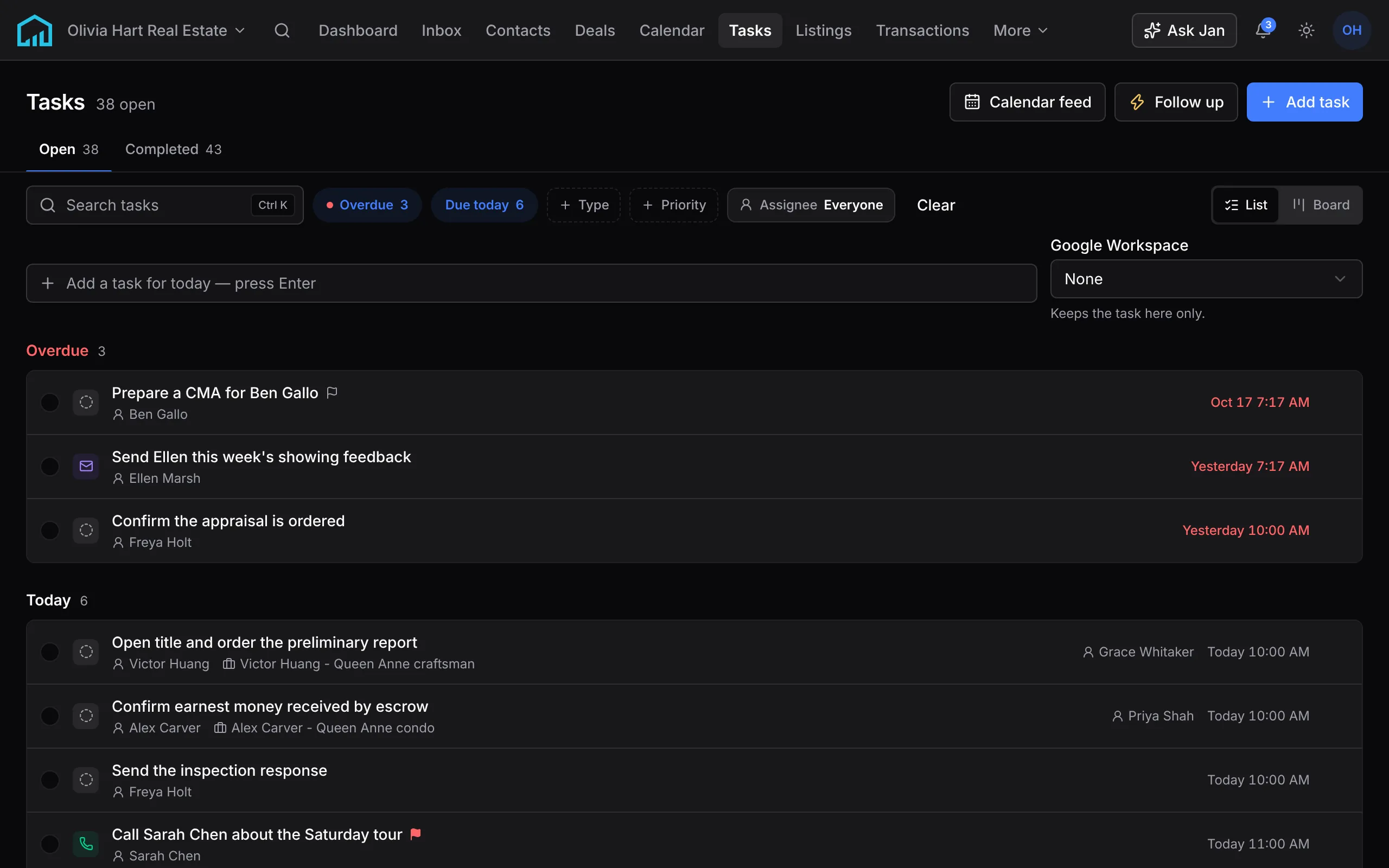
Open Tasks. Open tasks are grouped by when they're due: Overdue, Today, Tomorrow, This week, Later and No due date. Switch to Board to drag them between days.
Type in the box at the top and press Enter to add a task due today. Each task's menu can Snooze to another day, move it or delete it. Tasks can be linked to a contact or deal and assigned to a teammate.
To see tasks in another calendar app, use Calendar feed to copy a private subscription link. If you connected Google Tasks, a task can also save a copy there.

What happens next
Jan can tell you what's coming up this week. Automations can start when a meeting is booked, an appointment is completed or missed, or a task goes overdue, and can create tasks of their own, so follow-ups don't depend on memory.
If Google Calendar stops syncing, the calendar card says so, and reconnecting the account in Settings → Integrations brings it back.
If something’s off
- My Google events don’t show.
- Check Calendar is turned on for the account in Settings → Integrations, and that External events is ticked in the calendar filters.
- Visitors see no open times.
- Check the booking page is turned on, it has at least one meeting type, and your weekly hours aren’t all set to Unavailable. Minimum notice and the booking horizon also limit what shows.
- A task is due on the wrong day.
- Due dates are counted in your timezone. Check it under Regional Preferences in Settings → Profile.
Ask Jan to do it
Jan is the assistant built into Uplevel. Type any of these into Ask Jan in your dashboard.
- “Book a listing consult with Jane Smith next Tuesday afternoon.”
- Jan finds your open times, shows a card with the one it picked, and books it when you confirm. Jane gets the confirmation email and invite.
- “What’s my booking link?”
- Jan gives you the link and your meeting types, ready to paste.
- “Which of my tasks are overdue?”
- Jan lists them on your clock, with the contact or deal each is linked to.
Related
New to Uplevel? Try every guide in your own workspace.
Get early access