

Work the inbox and claim leads in a Team Inbox
Answer email, texts and missed calls from one list, clear what is waiting on you, and assign or claim conversations in a shared Team Inbox.
For agents and team leadsChecked About Inbox & Team Inboxes
Video walkthrough
The video for this guide isn’t recorded yet. Every step it will show is written out below.
- 1. One list for every channel
- 2. What “Waiting” means
- 3. Replying, and templates
- 4. Team Inboxes: assign, claim, close
- 5. Clearing the list with Jan
What it’s for
The Inbox puts your email, texts, missed calls and voicemails with contacts in one list, newest first. Each conversation sits beside the contact's details and recent activity, so you can reply without opening their record.
A team that shares a number works the same way in a Team Inbox: one shared queue where anyone can reply, and where a lead is assigned or claimed so two people don't answer the same person.
Before you start
- Gmail connected, for email. Connect Gmail covers it.
- A number that can text and take calls, for texts and missed calls. Get a phone number covers it.
- For a Team Inbox: an owner or admin has created one and added you to it.
Steps
Step 1: Read the list
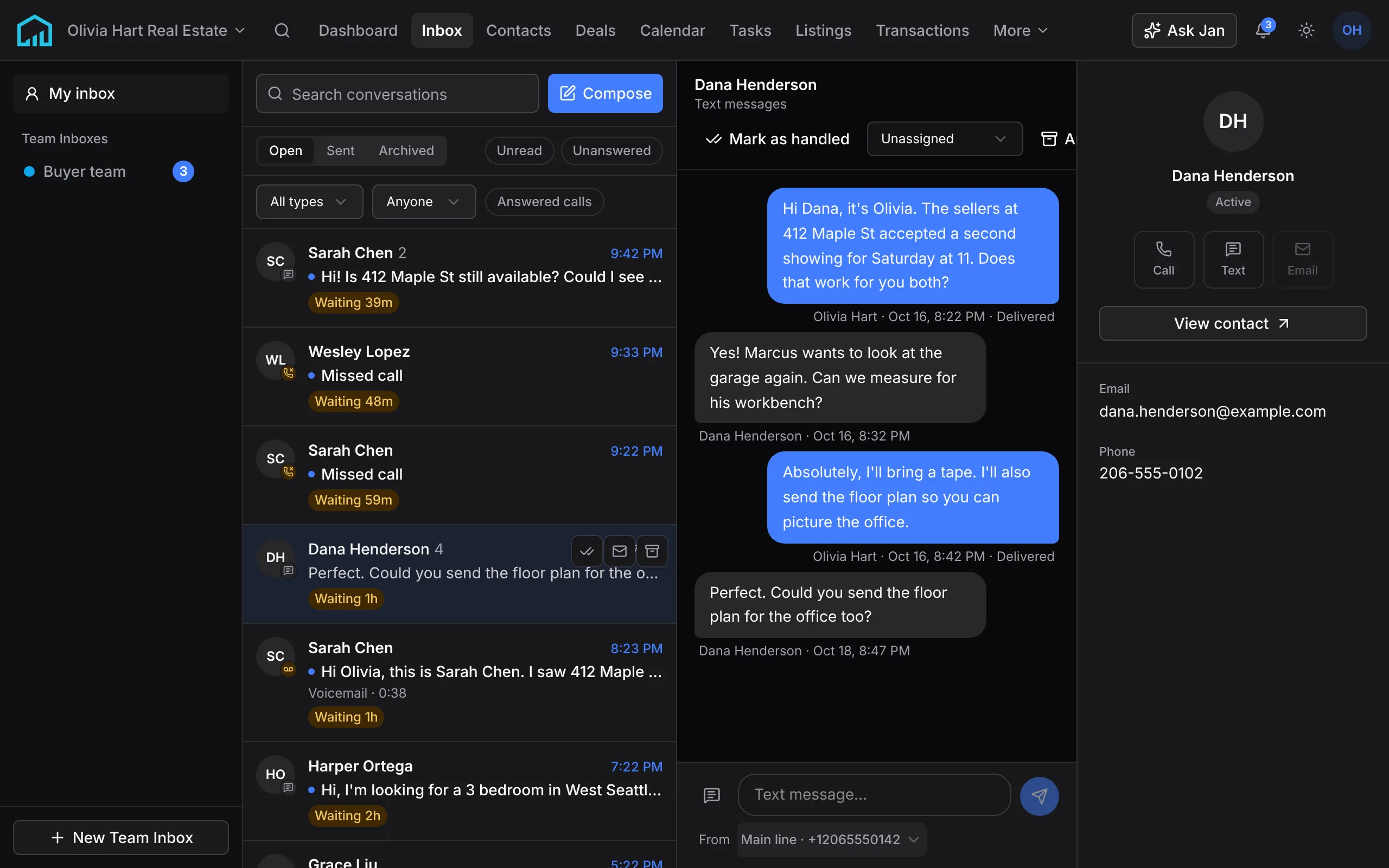
Open Inbox. My inbox shows your conversations, and any Team Inbox you belong to is listed below it.
- Open, Sent and Archived switch folders.
- Unread and Unanswered narrow the list. Unanswered keeps only what's waiting on you.
- A channel filter shows only email, texts or calls. Answered calls stay off the list unless you include Answered calls.
A conversation whose last message came from the contact shows how long it has waited, such as Waiting 3h. After a day the badge turns stronger. Newsletters, auto-replies and short-code texts never wait.
Step 2: Reply, or mark it handled
Open a conversation and reply in the box at the bottom. Email replies send from your Gmail address, so they thread in Gmail too. Texts send from your business number.
In a text reply, type / to insert a message template, or save what you wrote as a new one. A missed call opens with its voicemail player and transcript, with buttons to call or text back.
If you dealt with it some other way, such as a phone call from your mobile, choose Mark as handled. The conversation stops waiting until the contact writes again.
Step 3: Open a Team Inbox
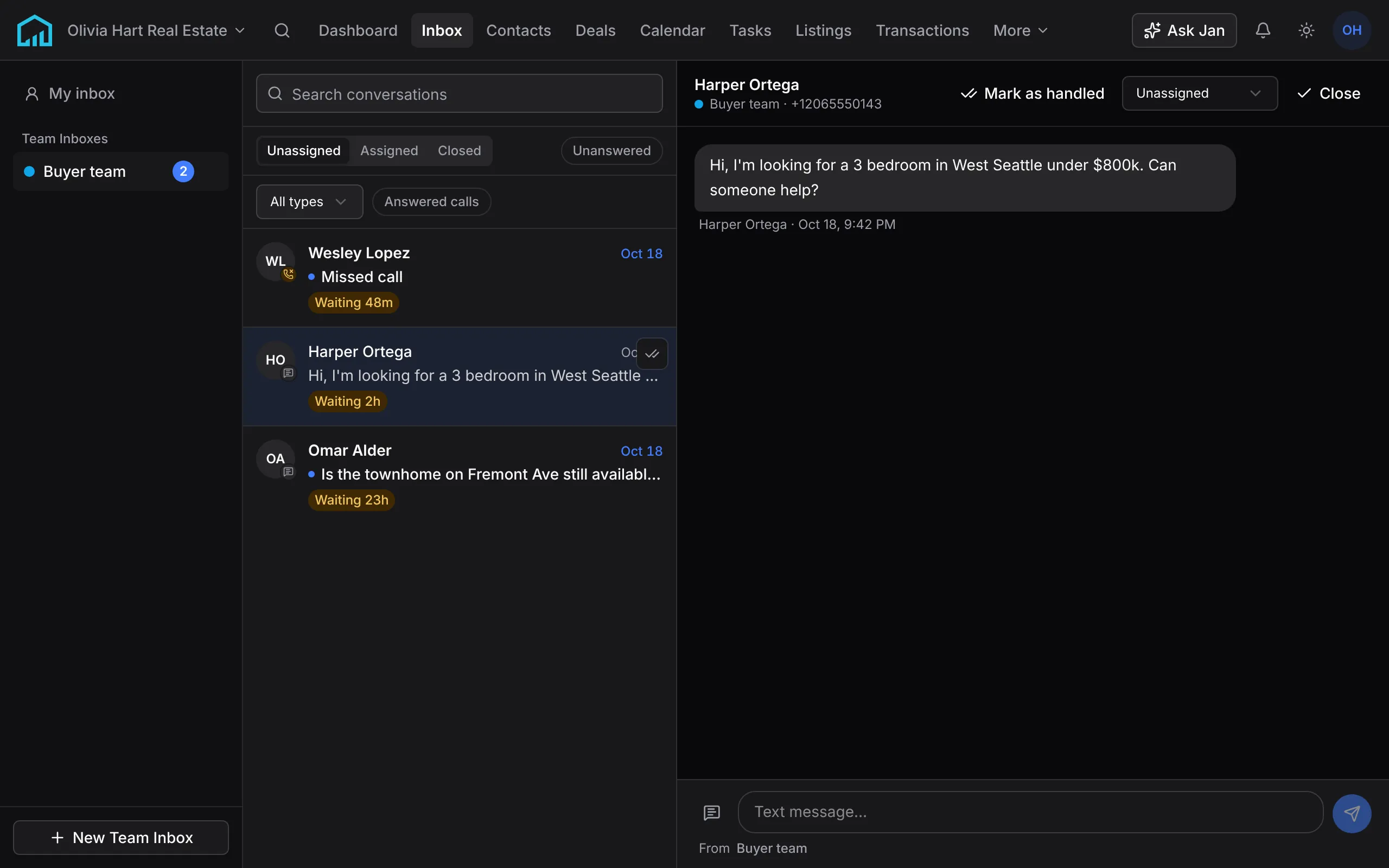
Choose the Team Inbox in the list. Its conversations come to its shared number and, if it has one, its shared email address. The queue has three tabs:
- Unassigned: nobody has taken it yet. Start here.
- Assigned: someone is on it. Assigning narrows new-message notifications to that person but never hides the conversation from the rest of the team.
- Closed: finished. Reopen brings one back.
Anyone in the Team Inbox can reply. The reply sends from the shared number and shows who sent it.
Step 4: Assign or claim a lead
In the conversation header, pick a teammate in the assignee menu to hand it to them, or choose Unassigned to give it back.
When the contact has no owner yet, or sits in a lead pond, the header also shows Claim. Claiming makes you the contact's owner, takes it out of the pond and assigns the conversation to you in one step. The contact's timeline records that you claimed it from the inbox.
Choose Close when the conversation is done.


What happens next
New texts and voicemails notify everyone who can see the contact until someone is assigned, then only the assignee. The bell at the top of every page lists them.
An owner or admin can turn on Assign on first reply under Settings → Workspace Defaults, so the first person to reply to an unassigned conversation becomes its assignee.
If something’s off
- An email isn’t in the Inbox.
- Uplevel keeps only mail with your contacts. Add the sender as a contact and new mail with them comes in.
- I don’t see Claim.
- Claim appears only when the contact has no owner or is in a lead pond you belong to. An owned contact can be assigned instead.
- A conversation keeps saying Waiting.
- It waits until someone replies or marks it handled. A new message from the contact starts the wait again.
Ask Jan to do it
Jan is the assistant built into Uplevel. Type any of these into Ask Jan in your dashboard. Jan can’t assign or claim a conversation yet. Do that from the conversation header.
- “Who’s waiting on a reply?”
- Jan lists the emails, texts and missed calls still waiting on you, oldest first.
- “I already called Todd back. Clear his conversation.”
- Jan marks the conversation handled, so it stops waiting until Todd writes again.
- “Text Jane Smith that the inspection moved to Thursday at 10.”
- Jan writes the text and shows a card to confirm before it sends from your number.
Related
New to Uplevel? Try every guide in your own workspace.
Get early access