

Set up call routing for your number
Decide who rings when someone calls your Uplevel number, in what order and for how long, when the line is open, and what callers hear when nobody answers.
For team leads and agentsChecked About Calls & texting
What it’s for
Every Uplevel number has its own routing: which teammates it rings, how it rings them, the hours it's open and the voicemail callers reach when nobody picks up. A solo agent usually sets it once so calls reach their mobile. A team uses it to share a line fairly.
Calls ring each teammate's own phone, and the caller's number shows on the screen, so you know it's a client before you answer.
Before you start
- A number in Uplevel. Get started covers getting one, and you can port your existing number in. Pricing has what calling costs.
- Owner or admin access to the workspace. Anyone else can see the routing but not change it.
- A mobile number in Settings → Profile → Phone Number for everyone the number should ring. Uplevel calls that phone.
Steps
Step 1: Open the number
Go to Settings → Calls & SMS → Numbers and choose the number. At the top, Number purposes should include Calls. If it doesn't, the number won't ring anyone.
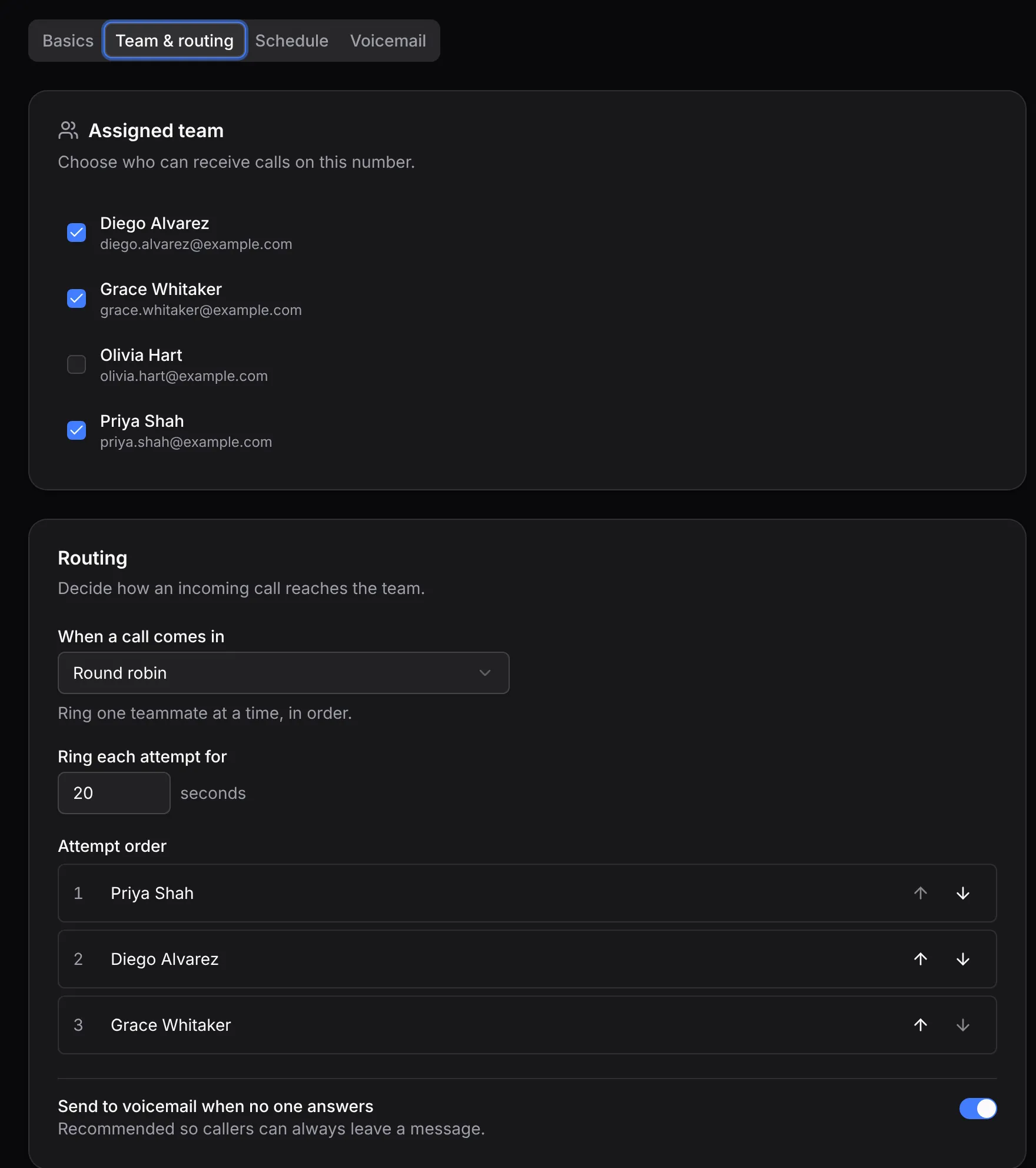
The number's settings are in four tabs: Basics, Team & routing, Schedule and Voicemail. Changes save together with Save changes at the bottom.
Step 2: Choose who it rings, and how
On Team & routing, tick everyone under Assigned team who should take calls on this number. Then, under Routing, choose what happens When a call comes in:
- Round robin rings one teammate at a time and starts with the next person on each call, so calls spread evenly.
- Everyone at once rings everyone together. The first to answer gets the caller.
- First available rings one at a time in the order you set, starting from the top every time.
For round robin and first available, set the Attempt order with the arrows.
Step 3: Set how long each phone rings
Ring each attempt for sets how many seconds a phone rings before Uplevel moves on. New numbers start at 20.
Keep it at 25 seconds or less. A phone that rings longer than its own voicemail timer sends the caller to your personal voicemail instead of the next teammate.
Leave Send to voicemail when no one answers on, so a caller can always leave a message.
Step 4: Set the hours
On Schedule, choose the number's Availability:
- Always take calls rings around the clock.
- Business hours rings weekdays from 9 to 5.
- Custom hours lets you tick each day and set its start and end. A window can run past midnight, such as 8 pm to 2 am.
Outside those hours, calls go straight to voicemail.
Step 5: Record your voicemail greeting
On Voicemail, keep Enable voicemail on and write a Greeting. Callers hear it read aloud until you save a Recorded greeting, which you can record in the browser.
With voicemail off, a call nobody answers simply ends, and the caller can't leave a message.
Choose Save changes. The next call follows the new routing.

What happens next
When someone answers, the caller is connected and the other phones stop ringing. When nobody does, the caller hears your greeting and can leave a message of up to five minutes.
Missed calls and voicemails show in your Inbox as conversations waiting for a reply, beside email and texts. Play a voicemail there, then call back, text or email. A caller Uplevel doesn't know yet becomes a new contact.
If something’s off
- A teammate’s phone never rings.
- They need a phone number on their profile, and they need to be ticked under Assigned team. Teammates without a profile phone are skipped.
- Callers reach my personal voicemail.
- Your phone’s own voicemail answered before Uplevel moved on. Lower Ring each attempt for to 20 seconds.
- Every call goes to voicemail.
- Check the Schedule tab: the number may be outside its hours. Business hours means weekdays 9 to 5.
- I can’t change anything on the page.
- Only owners and admins can change a number’s routing. Ask one of them, or ask for admin access.
Ask Jan to do it
Jan is the assistant built into Uplevel. Type any of these into Ask Jan in your dashboard. Jan can’t change a number’s routing yet. It opens the page so you can.
- “Take me to my phone number settings.”
- Jan opens Settings → Calls & SMS, where you choose the number and set its routing.
- “Who called this week and didn’t get an answer?”
- Jan lists missed calls and voicemails with the caller, when they rang and whether anyone has called, texted or emailed them back since.
- “Turn on call transcription.”
- Jan shows a card to confirm, then turns on transcription for the workspace. Owners and admins only.
Your first week · guide 6 of 8 · 0 done
Related
New to Uplevel? Try every guide in your own workspace.
Get early access