

Get started with Uplevel
Your first hour in Uplevel: where the Getting started checklist lives, which steps to do first, which need outside approval, and how to skip the rest.
For agents, team leads and brokerage adminsChecked
Video walkthrough
The video for this guide isn’t recorded yet. Every step it will show is written out below.
- 1. Where the checklist lives
- 2. Quick setup
- 3. Connect and import
- 4. Steps that need outside approval
- 5. Skipping a step, and asking Jan
What it’s for
A new workspace comes with contact stages, lead sources, a deal pipeline and a library of starter automations already in place. What it doesn't have yet is you: your profile, your brand, your email and your contacts.
The Getting started checklist lists everything left to set up, ticks each step off as you finish it, and tells you which ones take days because someone outside Uplevel has to approve them. This guide walks through it in the order that saves you the most time.
Before you start
- An Uplevel workspace. If you joined through Early Access, use the invitation link in your email first.
- Your logo and your website address, if you have them. Uplevel can draft your brand from either.
- A CSV of your contacts, or your Follow Up Boss login, if you are moving from another CRM.
Steps
Step 1: Open Getting started
When you sign in, the dashboard opens with a Getting started card: the next few steps, a Walk me through it button and a link to every step. On other pages, a Finish setup pill in the bottom-left corner keeps your place.
Choose See all steps to open the full checklist. It is split into groups and shows how many steps are done and how many are waiting on someone else.
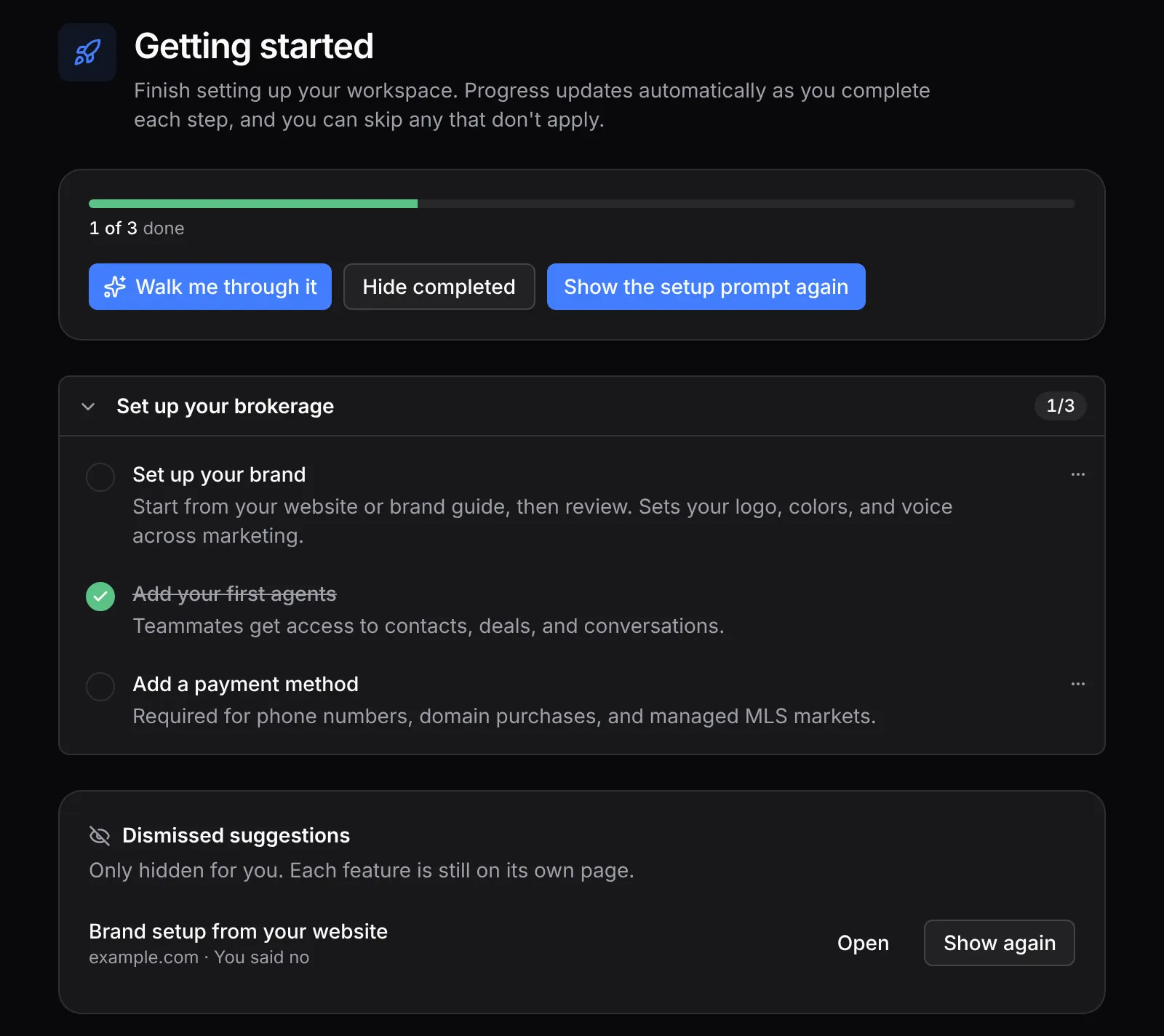
An agent in a brokerage sees only their own steps. A workspace you own has every group. Step 2: Do the quick setup first
The Quick setup steps take a minute each and change how everything else looks and sends:
- Fill in your profile. Your name and phone number appear in email, on reports and on your website.
- Set up your brand. Start from your website or a brand guide and review what Uplevel drafts: logo, colors and the voice your marketing is written in.
- Write your email signature. It goes on your one-to-one email and your automation email.
- Confirm timezone and business hours. These set send windows, quiet hours for texts and when tasks fall due.
The rest of the group (contact stages, tags, notifications, a smart list, a message template, a starter automation) can wait until you need them.
Step 3: Connect your email and bring in your contacts
In Connect and import, two steps matter most:
- Connect your Google account so your email with contacts shows up in the Inbox and your calendar syncs. Connect Gmail covers it step by step.
- Import your contacts from a CSV or straight from Follow Up Boss. You see how each column maps before anything is saved, and you can undo an import afterward.
Inviting your team, publishing a website and adding a lead form live here too.
Step 4: Start the steps that need outside approval
Start early holds the steps someone outside Uplevel has to approve, so they are worth starting on day one:
- Authenticate a sending domain so marketing email sends from your own domain. Your DNS provider has to publish the records. One-to-one email doesn't need this.
- Get a phone number, then register your 10DLC brand and campaign and assign the number to the campaign. US carriers review the brand and the campaign before you can text from the number. Calls don’t wait for that review.
- Connect a custom domain for your website.
A phone number and a custom domain need a payment method on file first. Each step shows whether it is waiting on DNS, on the carrier or on you.
Step 5: Skip what you don’t need
Every step has a menu behind the three dots at its end. Choose I don’t need this to skip it, or Mark as done for something you already handled outside Uplevel. A skipped workspace step is skipped for everyone in the workspace; a personal step only for you. Show skipped brings them back.
A few steps can't be skipped because another one depends on them, such as the payment method before a phone number. The menu says why.

What happens next
Steps tick themselves off as you finish them anywhere in Uplevel, so you never have to come back and mark them. When setup is complete, the card and the pill go away.
If you closed the card early, the dashboard keeps a link to Getting started until setup is finished.
If something’s off
- My checklist looks different from this one.
- Early Access workspaces get a shorter list in a different order: confirm your details, start the steps that need approval, then connect your inbox, import, and send one real test message. Agents in a brokerage see only their personal steps.
- A step says it’s waiting.
- Someone outside Uplevel has to act: your DNS provider for a domain, or the carrier for 10DLC. The step shows what it is waiting on, and ticks itself off when the approval arrives.
- I can’t skip a step.
- Steps that another step depends on stay required. Open the step’s menu, behind the three dots, to see which one needs it.
Ask Jan to do it
Jan is the assistant built into Uplevel. Type any of these into Ask Jan in your dashboard.
- “Walk me through my next Getting Started step.”
- Jan reads your checklist, explains the next step and opens the page where you do it.
- “Skip the lead-email forwarding step. We don’t use portals.”
- Jan skips the step for everyone in the workspace. Owners and admins can skip workspace steps; Show skipped brings it back.
- “What’s left before I can text from my number?”
- Jan reads the 10DLC steps and tells you which one is waiting, and on whom.
Your first week · guide 1 of 8 · 0 done
Related
New to Uplevel? Try every guide in your own workspace.
Get early access