

Set up your brand from your website
Have Uplevel draft your logo, colors, fonts, contact details and writing voice from your website or a brand guide, review each value, then save it.
For agents, team leads and brokerage adminsChecked
Video walkthrough
The video for this guide isn’t recorded yet. Every step it will show is written out below.
- 1. Why the brand comes first
- 2. Drafting from your website
- 3. Reviewing the marked fields
- 4. Starting from a brand guide instead
- 5. Sharing your brand
What it’s for
Your brand is used everywhere Uplevel makes something for you: email, your website and landing pages, listing marketing and the way Jan writes. Setting it once means none of those start from a blank page.
You don't have to type it in. Uplevel reads your own website, or a brand guide you already have, and drafts the values for you to check. Nothing changes until you save.
Before you start
- Owner or admin access. Other members can see and share the brand but not change it.
- Your website address. Uplevel reads up to three of its pages, such as the home, About and Contact pages.
- Or a brand guide: a PDF, a DESIGN.md or other markdown file, or the guide’s text.
Steps
Step 1: Start from your website
Go to Settings → Branding. Until your brand is set up, the page opens with Start from your website. Uplevel fills in the address from your email domain when it can; change it if your site lives somewhere else.
Add your About or Contact page if it has details the home page doesn't, then choose Draft brand. Reading takes up to a minute.
Listing portals and profile pages on other sites can't be read. Use your own site.
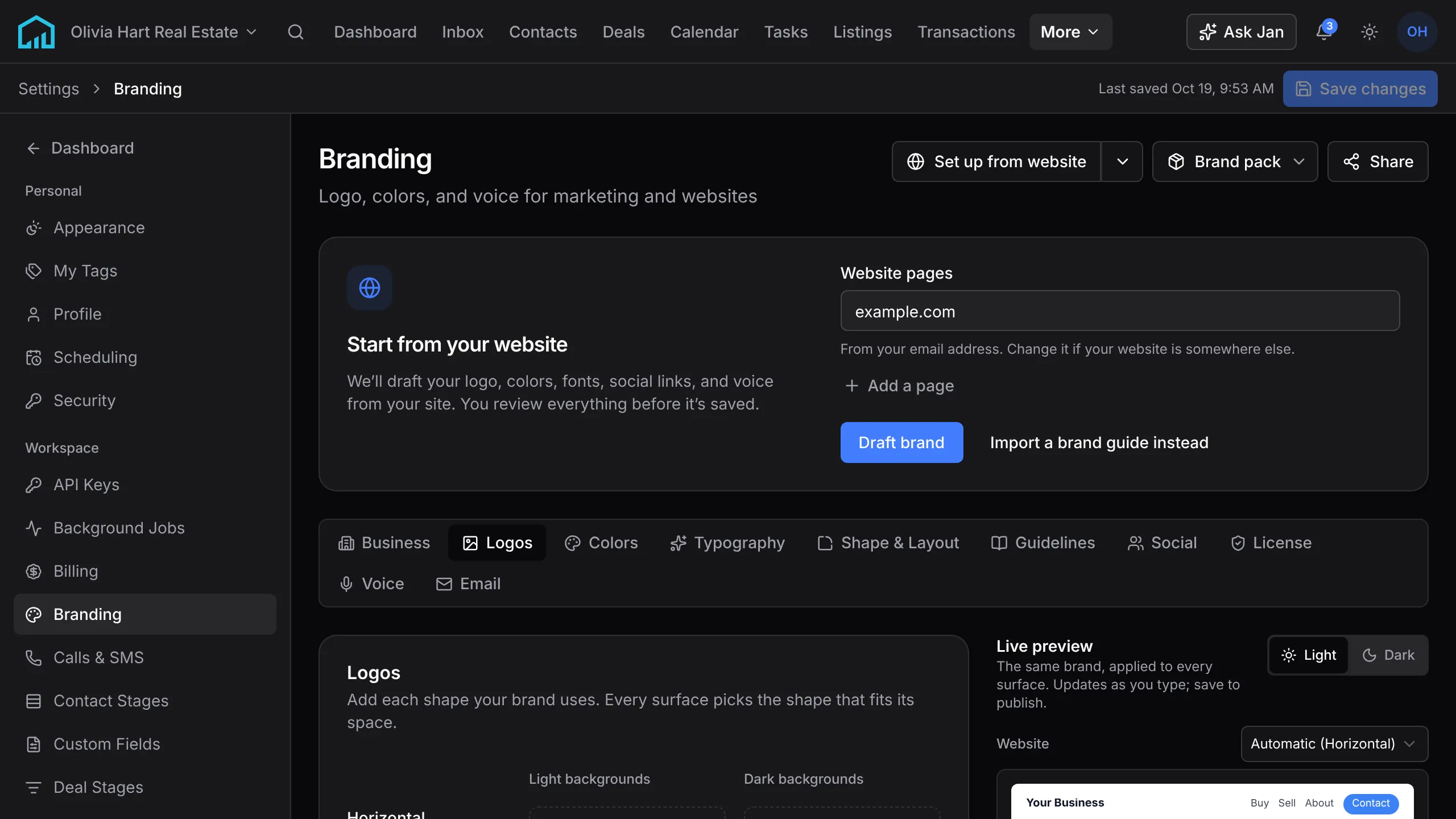
Step 2: Review what was drafted
The draft fills the Branding tabs: Business, Logos, Colors, Typography, Shape & Layout, Guidelines, License and Voice. A banner says how many fields were filled.
Each drafted field is marked. Some values are read from the source rather than stated there, such as a color picked from your logo, so check those first. Notes in the banner lists anything Uplevel couldn't draft.
Change anything that isn't right. The preview beside the form shows the brand on a sample page as you go.
Step 3: Save, or keep what you had
Choose Save changes to keep the brand. Only the logos you keep are added to your media library.
If you already had a brand, Keep my current values puts your saved values back wherever the draft replaced them. Discard draft throws the draft away. An unsaved draft is kept for 14 days.
Step 4: Start from a brand guide instead
Choose Import a brand guide instead, or Import a brand guide from the menu beside Set up from website once a brand exists. Drop in a PDF, a DESIGN.md or a text file, or paste the guide's text.
A guide can carry more than a website: print colors, typography rules, logo rules and do's and don'ts for your writing. Reading a guide can take a minute or two, and you review it the same way.
Step 5: Share it with designers and printers
Choose Share at the top of Branding. You can turn on a link to a page with your logos, colors, fonts and usage rules, which anyone with the link can open without signing in, or download your brand as a DESIGN.md file for designers and design tools.
Making a new link stops the old one working. An owner or admin turns the link on.

What happens next
New websites, landing pages and email designs start from the saved brand, and Jan writes in your voice. Colors and fonts update on your website and landing pages straight away. Email you have already designed keeps the colors it was built with.
To refresh the brand after your website changes, choose Set up from website again. You review the new draft before anything is replaced.
If something’s off
- The draft says it couldn’t read my site.
- Check the address opens in a browser without a login. Sites that block automated readers can’t be read; import a brand guide or fill in the tabs yourself.
- The logo came out on the wrong background.
- Open the Logos tab, which keeps a logo for light backgrounds and one for dark backgrounds, and choose each yourself. Upload a better file there if the site only had a small one.
- I can’t change anything.
- Only owners and admins can change the brand. Members can still share it.
Ask Jan to do it
Jan is the assistant built into Uplevel. Type any of these into Ask Jan in your dashboard. Jan can’t upload logo files. Add those on the Logos tab.
- “Set up my brand from example.com.”
- Jan reads up to three pages of your site and shows a card when the draft is ready. You review it in Branding before anything is saved.
- “Make our accent color #0F766E.”
- Jan updates the brand color. Websites and landing pages pick it up straight away.
- “Write in a warmer, more casual voice, and never use exclamation marks.”
- Jan updates your brand voice and writing rules, which every draft it writes then follows.
Your first week · guide 3 of 8 · 0 done
Related
New to Uplevel? Try every guide in your own workspace.
Get early access