

Make calls, work a call list and use call summaries
Call contacts from your browser on your business number, dial through a call list, log each outcome, and turn the call summary into tasks and appointments.
For agents and team leadsChecked About Calls & texting
Video walkthrough
The video for this guide isn’t recorded yet. Every step it will show is written out below.
- 1. Calling from a contact
- 2. Logging the outcome
- 3. The summary and next steps
- 4. Working a call list
- 5. Transcription and consent
What it’s for
Calls in Uplevel go out from your business number, through your computer's microphone and speakers, with the contact's record open in front of you. Every call is logged on the contact's timeline, and with transcription on, each one gets a summary and suggested next steps.
When you have a list of people to call, a call list dials them one after another so you don't lose time between calls.
Before you start
- A number that can take calls. Get a phone number covers it.
- A microphone and speakers or a headset, and permission for the browser to use them.
- For summaries: call transcription turned on by an owner or admin.
Steps
Step 1: Call a contact
Open the contact and choose Call. The call window shows their number and the number you're calling from, under Call from. Check your microphone and speaker there; the level meter moves when you speak.
Choose Call with their first name. While you talk you can mute, open the keypad and take Notes.
Minimize the call to keep working. It shrinks to a small bar that stays put while you move around Uplevel, and opens again when you click it.
Step 2: Log how it went
When the call ends, choose an Outcome: Connected, No answer, Left voicemail, Busy or Bad number. Add Call notes, and pick a Follow-up of Tomorrow, In 3 days or Next week to create a task for it.
Choose Log call. The outcome and notes go on the contact's timeline, and the follow-up appears in your tasks.
Step 3: Use the summary and next steps
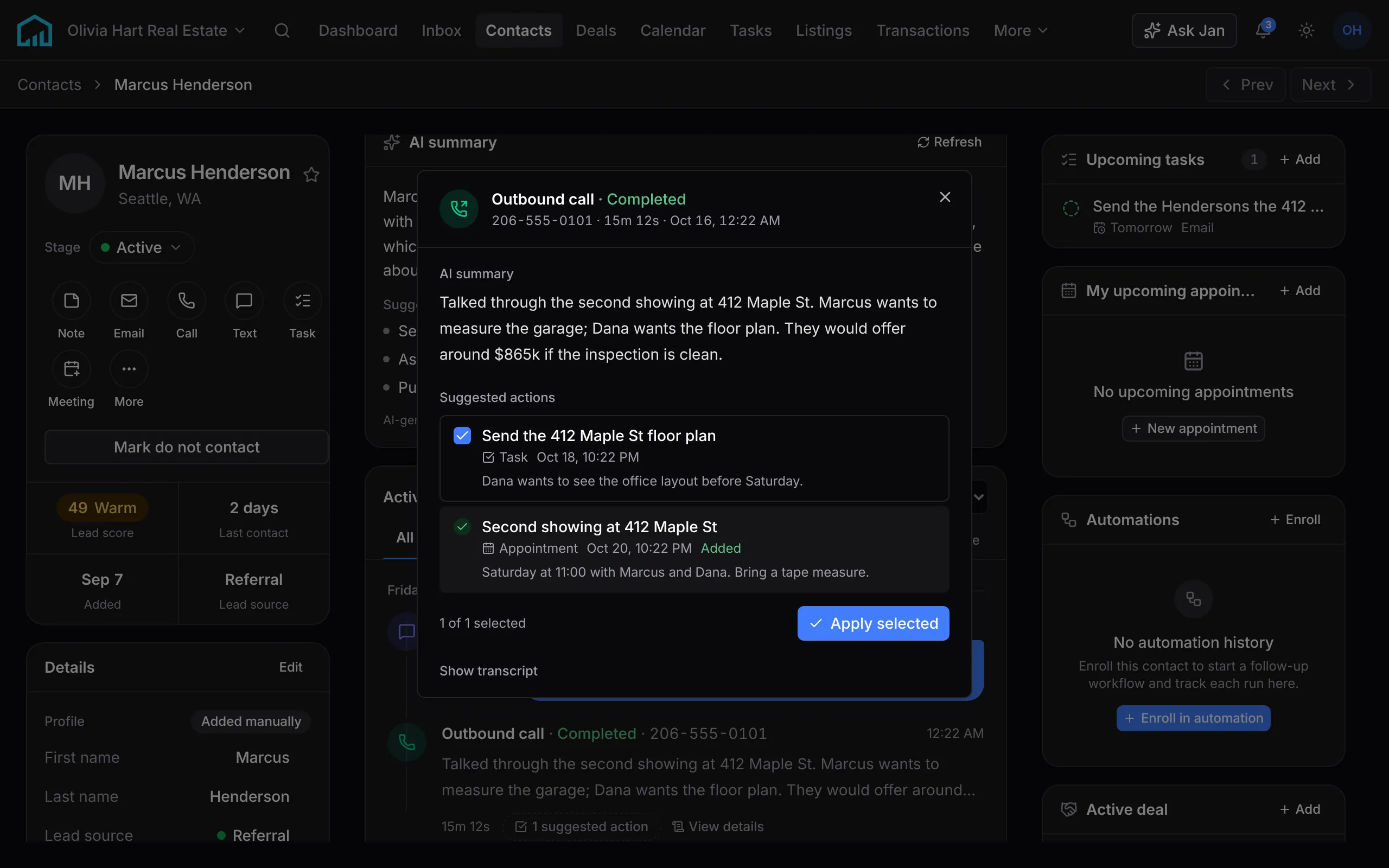
With transcription on, a summary of the call appears a few moments after you hang up, with Suggested next steps such as a task, an appointment or a deal. Tick the ones you want and choose Apply selected steps. They're created straight away.
Add summary to notes copies the summary into your call notes, and Transcript shows what was said. The summary and the suggestions also stay on the contact's timeline, so you can apply them later.
Step 4: Work a call list
On Contacts, tick the people to call, or select everyone matching a filter or smart list, and choose Call. The setup shows how many have no phone number; they're skipped. Check the number and audio, then choose Start calling.
A bar across the top of the app shows who you're calling, where you are in the list and a timer. Each call opens that contact's record underneath. After each call, pick the outcome, then choose Next to hang up and dial the next person. You can text the contact from the bar, too.
Close the bar to pause. Resume call list on Contacts picks up where you left off. At the end, the bar shows how many calls you made and how many connected.
Step 5: Turn on transcription
An owner or admin turns on Call transcription in Settings → Calls & SMS. With Play the recording announcement on, the other person hears “This call may be recorded and transcribed.” before transcription starts.
Calls with numbers in states that require everyone's consent to record, such as California, Florida and Washington, aren't transcribed, so they have no summary.

What happens next
Every call, its outcome and its summary show on the contact's timeline, beside their texts and email. Inbound calls ring the phones in your number's routing; Set up call routing covers who answers.
Missed calls and voicemails land in your Inbox, waiting for a call back.
If something’s off
- The Call button is greyed out.
- The contact needs a phone number, and the workspace needs a number with calls turned on. The call window says which is missing.
- The other person can’t hear me.
- Allow microphone access for Uplevel in your browser, then choose the right microphone in the call window. The level meter should move when you speak.
- A call has no summary.
- Transcription may be off, or the number is in a state that requires everyone’s consent. Jan can tell you which.
Ask Jan to do it
Jan is the assistant built into Uplevel. Type any of these into Ask Jan in your dashboard. Jan can’t place a call or start a call list for you. Calls start from the contact or from Contacts.
- “What did Marcus and I agree on our last call?”
- Jan reads the call’s summary and lists its suggested next steps and whether each was applied.
- “Apply the follow-up task and the showing from that call.”
- Jan creates the task and the appointment from the call’s suggestions. Appointments need a connected Google Calendar.
- “Log my last call as left voicemail, follow up next week.”
- Jan saves the outcome on your last call and creates the follow-up task.
Related
New to Uplevel? Try every guide in your own workspace.
Get early access