

Organize contacts: smart lists, households, occasions and lead score
Build smart lists that keep themselves current, group families into households, name who handles each contact, track occasions, and read the lead score.
For agents and team leadsChecked About Contacts & CRM
Video walkthrough
The video for this guide isn’t recorded yet. Every step it will show is written out below.
- 1. Smart lists
- 2. Households
- 3. Relationships
- 4. Occasions
- 5. Reading the lead score
What it’s for
A contact list is only useful if you can find the right people in it when it matters. Uplevel gives you a few ways to organize it without spreadsheets: smart lists that update themselves, households that keep a family together, relationships that say which teammate handles what, and occasions such as birthdays and home anniversaries.
The lead score sits on top of all of it, so the contacts showing the most interest stand out.
Before you start
- Contacts in Uplevel. Import your contacts covers bringing them in.
- For relationships: an owner or admin sets up the relationship labels, such as Lender, in Settings → Relationships.
Steps
Step 1: Build a smart list
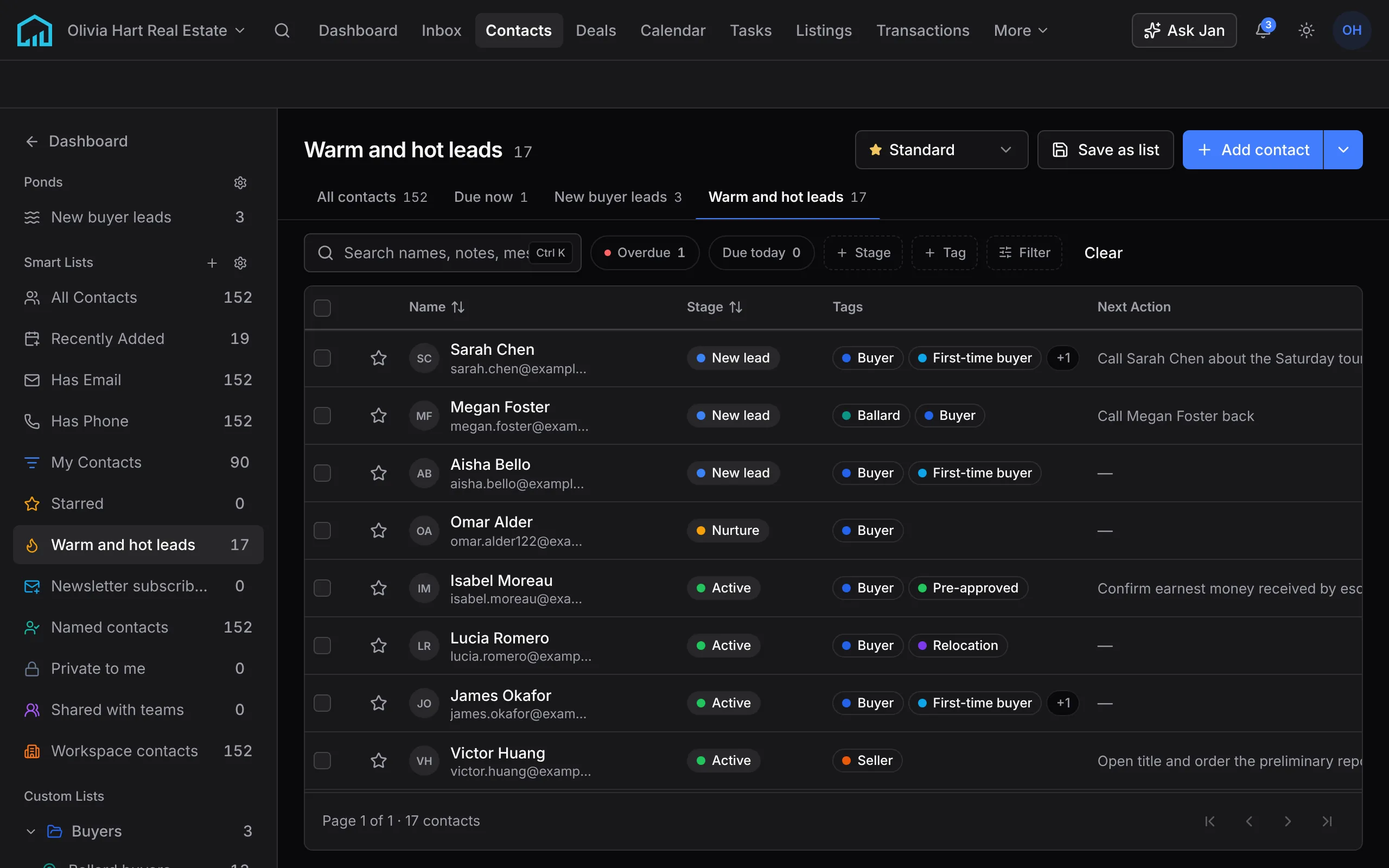
On Contacts, choose + beside Smart Lists in the sidebar to open New smart list. Or filter the contacts list the way you want and choose Save as list.
Add Conditions for who belongs, such as a stage, a tag, a lead source or a lead score. The preview updates as you edit. Under Details, name the list, describe it and pick a folder. Under Sharing, keep it to yourself or share it with your team. Choose Create list.
The list keeps itself current: anyone who starts matching the conditions joins it, and anyone who stops leaves. Broadcasts and automations can use it as their audience.
Step 2: Group a household
Open a contact. In Household, choose Create household, name it, such as "The Smith Family", and add members by searching your contacts.
From then on you can jump between them from any member's record. You can add children with their birthdays, choose who is head of household, or remove a member.
Step 3: Name who handles the contact
Relationships on a contact lists your workspace's relationship labels, such as Lender or Transaction coordinator. Choose Assign on a label and pick the teammate who fills it.
Assigning a teammate shares the contact with them if they couldn't already see it. Some labels allow only one person per contact, and assigning one replaces the previous holder, who stays on the contact as a collaborator.
Step 4: Add occasions
In Occasions on a contact, choose Add occasion. Pick the kind, such as a birthday or a home anniversary, and the date. The year is optional for a birthday.
Repeats every year is on by default. Turn it off for something that happens once, like a lease renewal. For a home anniversary, add the property, so a client with two homes gets one for each.
When an occasion comes up, Draft a note asks Jan to write something for it, and Add a task puts it on your list. Closing a deal adds the purchase or sale anniversary for you.
Step 5: Read the lead score
Every contact has a lead score from 0 to 100 with a band: Cold below 40, Warm from 40 and Hot from 70. It shows on the contact, in the contacts list and on the dashboard.
The score rises when a contact replies, talks with you, books a meeting or fills in a form, browses your website or listings, or clicks your marketing email, and when you've talked recently. It fades as that activity gets older. Open the score on a contact to see exactly which of those counted.

What happens next
Sort the contacts list by Lead score, or make a smart list of Hot leads, and you have a call list for the day. Occasions also appear on the Calendar, so you see them coming.
Automations can run on a schedule for everyone in a smart list, or start when an occasion such as a birthday arrives.
If something’s off
- A teammate can’t see my smart list.
- Smart lists are private until you share them. Edit the list and change Sharing. Teammates see only the contacts in it they’re allowed to see.
- A contact’s lead score is low even though we talk a lot.
- The score counts what Uplevel can see. Calls on your personal phone and email from an account you haven’t connected don’t count.
- I can’t assign a relationship.
- An owner or admin has to add the relationship labels first, in Settings → Relationships.
Ask Jan to do it
Jan is the assistant built into Uplevel. Type any of these into Ask Jan in your dashboard. Jan can’t create or change households yet. In the smart list builder, choose Ask Jan to have it propose the conditions for you to review.
- “Who are my hottest leads right now?”
- Jan ranks your contacts by lead score, with each one’s band and the reasons behind it.
- “Add Jane Smith’s home purchase anniversary for 12 Oak St, June 14 2021.”
- Jan adds the occasion to her record. It repeats every year.
- “Which birthdays and anniversaries are coming up in the next two weeks?”
- Jan lists your contacts’ occasions in that window, soonest first.
Related
New to Uplevel? Try every guide in your own workspace.
Get early access