

Meet Jan: ten things to ask on day one
Open Jan, see how it asks before it changes anything, and try ten requests that work on day one, from who to follow up with to building an automation.
For agents, team leads and brokerage adminsChecked About Ask Jan
Video walkthrough
The video for this guide isn’t recorded yet. Every step it will show is written out below.
- 1. Where Jan lives
- 2. Asking, and what comes back
- 3. When Jan asks you to confirm
- 4. Ten things to try
- 5. What Jan can’t do
What it’s for
Jan is the assistant built into Uplevel. It works with your real contacts, deals, tasks, calendar, inbox and settings, with the same access you have. Ask it in plain words to find something, change something or take you to the right page.
Most of what you can do in Uplevel, you can ask Jan to do instead. This guide shows where to find it and ten requests worth trying first.
Before you start
- An Uplevel workspace. Jan sees only what your role lets you see.
- A few contacts, so Jan has something to work with. Import your contacts covers it.
Steps
Step 1: Open Jan
Jan opens from three places:
- The dashboard opens on Jan, with a box to ask anything and a few suggestions under it.
- Ask Jan at the top of every page opens a panel beside what you're working on, so you can keep working while you ask.
- Press ⌘J on a Mac or Ctrl+J on Windows from anywhere.
Type your request, or choose the microphone to dictate it. The panel keeps your conversations under Conversation history, and you can pop it out into its own window.
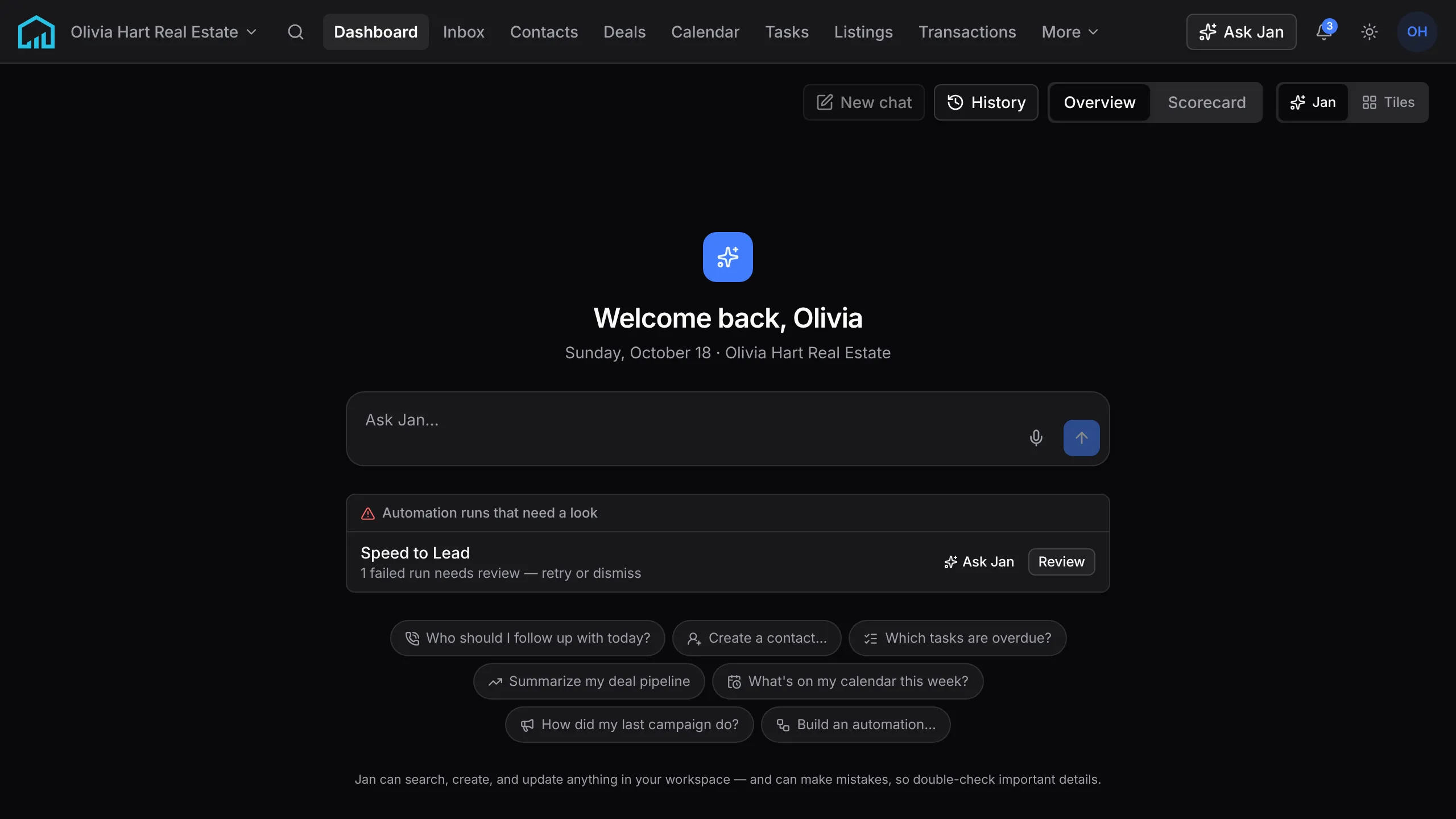
The dashboard opens on Jan. A run that needs attention shows above the box. Step 2: Read what comes back
Jan answers with what it found: a list of contacts, a task it created, a deal summary. Names link to the record, so you can open a contact straight from the answer.
Jan can make mistakes. Check important details before you act on them, the way you would with a new assistant.
Step 3: Confirm before anything sensitive happens
Reading and small changes, such as adding a task or a tag, happen straight away. Anything that sends, deletes or can't easily be undone shows a card first, marked Needs your approval or Confirm this action. It says exactly what will happen.
Choose Confirm to go ahead or Cancel to leave everything as it was. Jan never sends a text or an email, deletes a contact, deal or task, or starts an import without that card.
Step 4: Try ten things on day one
- "Who should I follow up with today?" Jan ranks the contacts most worth a call, with the reason for each.
- "Who's waiting on a reply?" The emails, texts and missed calls still waiting on you, oldest first.
- "Which of my tasks are overdue?"
- "Remind me to call Jane Smith tomorrow." Jan creates the task, due tomorrow, on her record.
- "Add a contact: Jane Smith, jane@example.com, a buyer from Saturday's open house."
- "Summarize my deal pipeline."
- "What appointments do I have this week?"
- "Who called this week and didn't get an answer?"
- "Set up my brand from example.com." Jan drafts it for you to review in Branding.
- "Build me an automation that texts new website leads within five minutes." Jan builds it switched off, for you to review before it runs.
Step 5: Ask what it can do, or where something is
When you're not sure Jan can do something, ask: "Can you send a broadcast?" Jan checks what it can do in that area and tells you plainly, including what you need to do yourself and where.
"Take me to my phone number settings" opens the page. "Walk me through my next Getting started step" explains the next step on your checklist and opens it.

What happens next
Jan remembers the conversation you're in, so you can follow up with "and the one after that?" or "make it Thursday instead". Start a new conversation for a new task.
When you're in a builder or editor, such as the email builder or an automation, Jan works on what's open in front of you.
If something’s off
- Jan says it can’t do something.
- Some actions stay with you on purpose, such as buying a number, approving a Google connection or deleting many records at once. Jan says where to do it instead.
- Jan can’t find a contact I know is there.
- Jan sees only the contacts your role can see. A teammate’s private contact won’t show for you, in Jan or in Contacts.
- ⌘J doesn’t open Jan.
- Click into the page first, so the shortcut reaches Uplevel instead of the browser. The Ask Jan button at the top works everywhere.
Ask Jan to do it
Jan is the assistant built into Uplevel. Type any of these into Ask Jan in your dashboard.
- “What can you help me with?”
- Jan explains what it can do across your workspace, and offers to start with your setup.
- “Walk me through my next Getting started step.”
- Jan reads your checklist, explains the next step and opens the page where you do it.
Your first week · guide 8 of 8 · 0 done
Related
New to Uplevel? Try every guide in your own workspace.
Get early access